Your email is designed and on brand, but the next person needs to edit it without touching code. You can usually convert an HTML email to drag and drop by importing it into your email platform's editor, which rebuilds it as editable blocks. Expect a migration, not a pixel-perfect copy: spacing and styling can shift, and code-only features may drop. Clean, simple HTML converts best, and once it's in, save your header, footer and buttons as reusable blocks so every new email starts on brand.
In short
- It's a rebuild, not a copy. The editor recreates your layout as rows, columns, text, images and buttons.
- Keep the original HTML. It's your source of truth. Re-export from it rather than patching the converted copy.
- Check before you send: text, links, personalisation, alt text, mobile, and a test email.
- Save reusable blocks. Header, footer and buttons saved once mean every new email starts on brand.
This read starts once your HTML is already in your ESP. For that part, see how to export and import your design.
What converting to drag and drop actually does
Many email platforms and builders can take imported HTML and turn it into a template you edit block by block. The importer reads your layout and rebuilds it from its own blocks: rows and columns, text, images, buttons and dividers. The words, links and images are yours. The code underneath is new.
That's why importer docs describe it as a migration rather than a perfect reproduction. Some design touch-ups afterwards are normal. It's still much quicker than rebuilding the email by hand.
What usually carries over and what can change
Importers differ, so check your own platform's help pages. In general:
- Usually carries over: your copy, links, images, colours and fonts.
- Can shift: spacing, padding and some styling, because the layout is rebuilt rather than copied.
- May drop: custom CSS without a block equivalent, anything built or changed with JavaScript, and interactive or AMP-style code. Importers typically handle static HTML and CSS only.
- Can fail: images or files on a private network or behind a login. Importers need publicly hosted images.
- May be skipped on purpose: some importers leave out tracking pixels and "view in browser" links, since your platform adds its own.
Why clean HTML converts better
The less an importer has to guess, the less you fix afterwards.
A complete, valid file. Some importers ask for a proper doctype, <html> and <body> tags, and a UTF-8 charset in the head. Without them you can get odd characters or a failed import.
A simple layout. One column, clear sections and live text instead of words baked into images give the rebuild a cleaner map to follow. Our HTML email checklist covers the basics.
Consistent styles. If every button, heading and colour comes from one brand kit, there are fewer one-off styles to lose, and it's easier to spot when something has drifted.
Public images. Host images somewhere the importer can reach before you bring the HTML in.
Milo Email Studio is built to be that clean start. You design on a drag-and-drop, brand-kit canvas and leave with export-ready HTML, so the file you import is tidy and consistent from the first block.
Save reusable blocks
This is the real payoff. A single conversion gives you one editable email. Saving the pieces you'll reuse gives you a kit for every email after it.
Your header, footer, main button and offer or product row took care to get right. Once they're blocks in your ESP's editor, many platforms let you save blocks or sections and reuse them in new emails. If yours does, you can try saving those few pieces straight after the conversion, then building new campaigns from them instead of importing fresh HTML each time. Your team gets on-brand building blocks, and nobody needs a designer to start the next email.
The same idea works on the design side. In Milo, you can save blocks you've built to your workspace's library and drop them into the next email, so the header and footer you signed off once stay the same everywhere.
The Milo side: build and export
Describe the email and the AI designer drafts on-brand blocks onto the canvas, using your brand kit. You edit the copy and layout, and share a preview link if someone needs to sign it off.
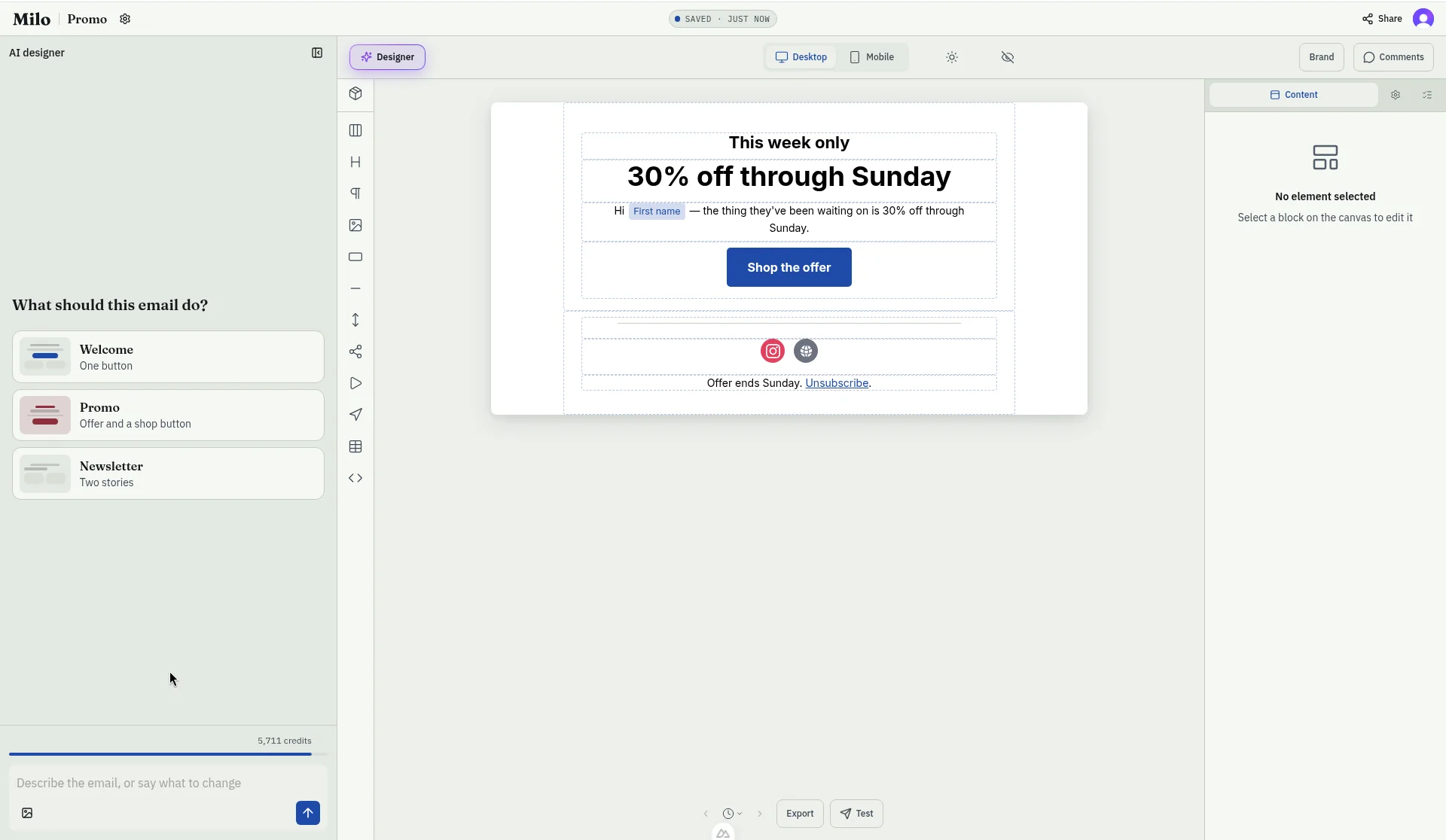
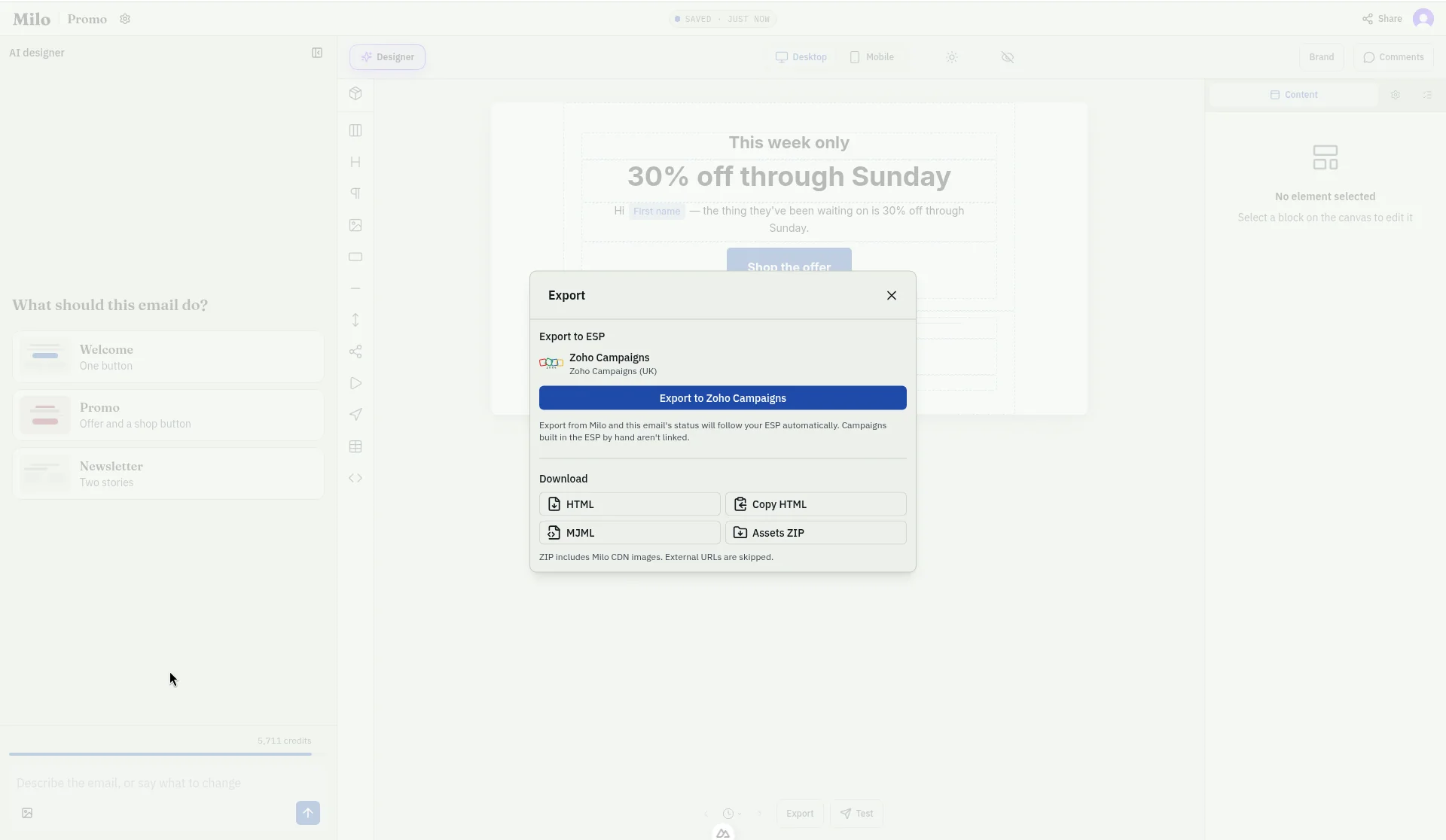
When the proof looks right, send a test to an address on your account, then export HTML for your ESP's importer. Export MJML only if your own pipeline compiles it first. See HTML vs MJML export if you're unsure.
While you edit, you can insert merge tags in your ESP's format, so personalisation is in place before you export. Still check them after conversion.
Original HTML or converted copy: which to keep
You'll usually keep both.
| Original HTML | Converted drag-and-drop copy | |
|---|---|---|
| Who can edit it | Someone comfortable with code | Anyone using the block editor |
| Fidelity | Exactly what you designed | Rebuilt, so spacing and styling can shift |
| Code-only features | Kept | May be dropped |
| Reuse | Re-export the whole email | Save individual blocks for new emails |
| Best for | The master copy | Day-to-day edits and new campaigns |
A short checklist before sending
- Text, buttons and links match the original.
- Personalisation and merge tags fill in correctly.
- Every image loads and has alt text.
- It reads well on mobile as well as desktop.
- You've sent yourself a test from your ESP.
Where Milo fits
Design on brand with the AI designer and your brand kit, send a test, then export HTML or MJML ready for your ESP, or push a draft to Zoho Campaigns. The campaign itself goes out from your ESP. For when a studio beats building straight in your platform's editor, see design then export vs build in your ESP.
Try it on your next email.
Questions
Will my design look identical after converting?
Probably not exactly. The editor rebuilds the email from its own blocks, so expect small changes to spacing and styling, and plan a quick review.
Does the original HTML change?
Usually not. Importing creates a new template. Check your platform's docs, and keep your own copy of the HTML either way.
Why are my images missing?
Importers need images hosted somewhere public. Images on a private network or behind a login can't be pulled in.
Do merge tags survive?
They often come across as text, but check them. Make sure personalisation fills in correctly in a test email before you send.
Should I import HTML or MJML?
Most importers expect HTML. See HTML vs MJML export for when MJML makes sense.