Good abandoned cart email design is simple: remind people what they left, look like your shop, and give one clear way back to the cart. Keep the product name and price in live text, put one Return to cart button above the fold, and add a short review in live text next to a star image if you have one. In Milo Email Studio you build it on a drag-and-drop canvas from the Promo starter and your brand kit, send a Test, then export HTML or MJML for your ESP or push a Zoho Campaigns draft.
Someone left items in the cart, and the reminder that follows often looks like a different shop: wrong colours, a generic button, product details trapped in an image. Start from the Promo starter on your brand kit, put the product and the ask in live text, add a short social-proof line, and the reminder looks like every other email you send. Then export HTML or MJML for your ESP, or push a Zoho Campaigns draft. The recovery journey itself still runs in your ESP.
In short
- Remind, look like the shop, one way back to the cart.
- Product and price in live text; one button.
- Social proof as an image plus live text (no rating widget).
- Build, Test, then export HTML or MJML, or push to Zoho. The journey runs in your ESP.
What should an abandoned cart email include?
A short reminder of what they left, the product in live text, one Return to cart button, who it's from, and an unsubscribe link.
- A first-name greeting, if you have the tag. Your ESP's merge tag fills it in.
- Price and any still-valid offer in live text. So it still reads with images off.
- A real product photo with alt text. Name the product, not "product image".
- Optional one-line social proof. A star image plus a short review in live text.
Dynamic cart contents come from your ESP's merge tags or product feed. Milo keeps those tags intact through export. It does not pull live cart contents.
Why cart emails often look off-brand
Cart reminders get rushed. Built in a hurry, they pick up the wrong palette, bake the product name into a single image, or stack three buttons that compete for the click. The shop's own emails look like one brand. The cart chase looks like another.
The fix is the same kit you already use for everything else. Set your colours, fonts and buttons once, and a new email picks them up. The cart reminder then matches the welcome email on the same brand kit, so the person who left items still recognises you when the reminder arrives.
One reminder, one button
Lead with a calm headline, not a shout. "Still thinking it over?" works for a candle shop. Then the product name and price in live text, a product photo with real alt text, and one button: Return to cart or Complete your order, pointed at your cart URL.
One button is enough. A second offer, a browse-more link and a social row all compete with the thing you actually want: a return to the cart. Keep extras out of this email.
One good reminder is enough to start. If your ESP supports a short follow-up, Duplicate the first email, rename it, and soften the second send ("Your cart is still here"). Duplicate keeps the blocks, brand kit, subject and merge-tag dialect. It does not carry the due date, so set that on the copy. Both emails stay on the same kit without rebuilding the layout.
Social proof without a rating widget
A short review next to a few stars gives a hesitant buyer one more reason to finish. Milo has no rating block, star widget or live review feed. Build the section yourself: add a small star graphic as an image, then put the review in live text underneath or beside it.
Use an invented example only while you design, and label it as one. Swap it for a real customer line before you export. Never claim the stars are a live rating.
Sequences stay in your ESP
Design the reminder here. Triggers, timing and cart data stay in your ESP. Email platforms are adding AI agents that draft whole flows (one went generally available on 13 Oct 2026). The on-brand design still comes from your brand kit, not from the agent that schedules the send.
Flows gets the draft ready in the studio. Create the email, apply the kit, send a Test or push to Zoho. The cart journey itself still runs in your ESP. When carts spike around the sale weeks, keep this reminder on brand beside your Black Friday and Cyber Monday set. Cart abandonment email design is evergreen; BFCM is when the volume jumps.
Subject line and preview text
Calm beats shouty for a basket abandonment email. Three pairs for an example candle shop:
- Reminder. Subject: "You left something in your cart". Preview: "Your fig and cedar candle is still here."
- Follow-up. Subject: "Your cart is still here". Preview: "Complete your order when you're ready. No rush."
- Soft close. Subject: "Ready when you are". Preview: "Your cart is saved. One tap to finish."
Each email in Milo has its own preview text, up to 180 characters, but short reads better. When you reuse a starter, check the preview text: Promo's default is a sale line, and it won't match a cart reminder until you replace it. Our guide to preview text that earns the open has more.
Build it on your brand kit
There is no abandoned cart, cart recovery or ecommerce starter in Milo. Start from Promo ("Offer headline, supporting copy, and a shop button"), rewrite the headline as a calm reminder, change the button text and link, and add the product row yourself as an image plus live text.
Your brand kit does the styling. A new email picks up your kit's colours, fonts and buttons, and you can apply a kit to an email you've already made. Free includes one brand kit.
Save a product row or footer as a saved block and drop it into the follow-up, so the second send stays consistent without rebuilding.
You're the builder. The AI designer is optional when you'd like a hand with the words. It doesn't know the cart, so give it the facts: product name, price, one Return to cart button, a calm tone. It drafts on-brand blocks you edit on the canvas, and it can set the email's name, subject and preview text. It places photos you upload or pick, but it doesn't make them. There's more on how the AI designer drafts blocks you can edit.
Columns stack on phones by default, so a product row with an image beside the copy still reads on a narrow screen. One Test on your own phone is still worth it.
Test, then hand it to your ESP
Send yourself a Test before the reminder goes anywhere. Milo sends it to an address on your account with "Test:" and the email's name as the subject, so you see it as a shopper would. Check the product name and price read with images off, the Return to cart button goes to your real cart URL, and the footer has an unsubscribe link. The checks we run before every export cover the rest.
Then take export-ready HTML or MJML into your ESP, or push it as a Zoho Campaigns draft. If you push to Zoho, keep its unsubscribe tag, $[LI:UNSUBSCRIBE]$, in the footer. Milo warns you before the push if it's missing. Scheduling, sending and the abandoned-cart trigger live in your ESP.
How we built this
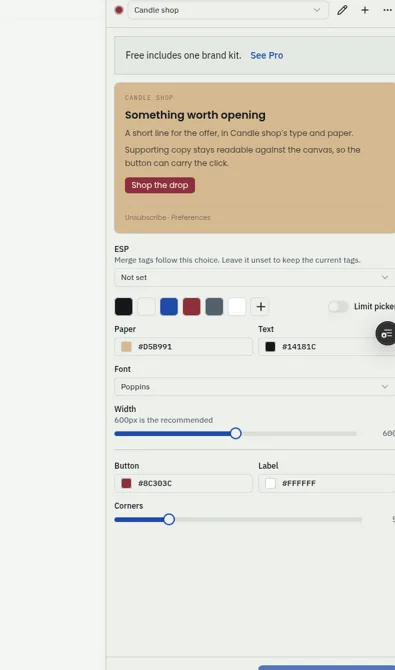
On 29 October 2026 we built one abandoned cart reminder for an example candle shop in Milo Email Studio, by hand on the canvas. The workspace had no brand kit, so we made one from scratch, named "Candle shop", with tan paper (#D5B991), dark text (#14181C) and a burgundy button (#8C303C), then applied it. We didn't use the AI designer for this run, and we didn't Duplicate a second email.
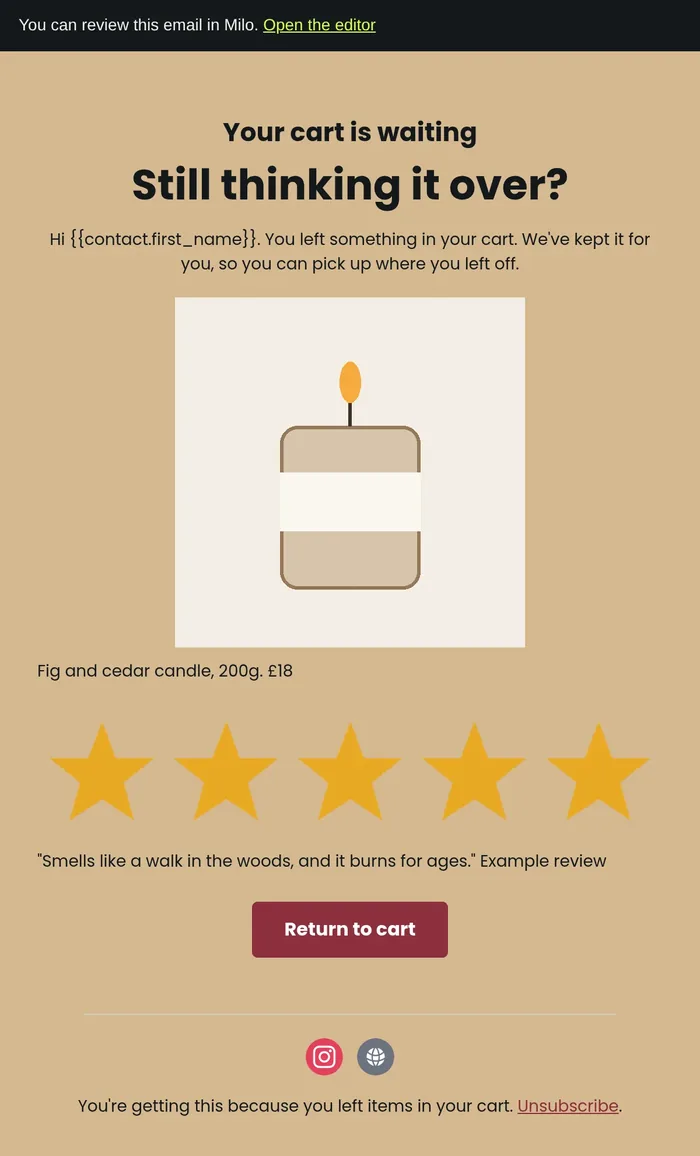
The reminder started from the Promo starter. We changed the small label above the headline to "Your cart is waiting", the headline to "Still thinking it over?", and the body to a first-name greeting with a short cart line. The product row is an illustration of a candle in a jar (alt text naming the candle) plus live text "Fig and cedar candle, 200g. £18". Social proof is a five-star image (alt "Five stars") and a short review in live text, labelled "Example review". The button reads "Return to cart" and points at a placeholder cart URL. The footer says why the email arrived, with Unsubscribe. Subject: "You left something in your cart". Preview: "Your fig and cedar candle is still here." Promo's starter preview text was a sale line ("This week only: 30% off through Sunday."), so we replaced it.
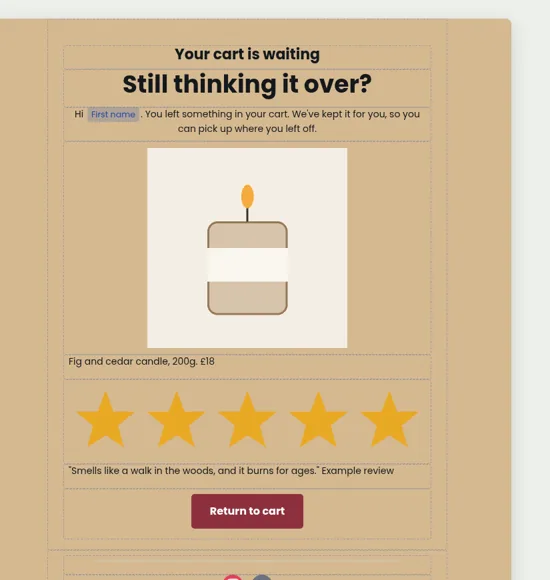
We sent one Test. It arrived from Milo with the subject "Test: Cart reminder" and a short banner at the top with a link back to the editor. The first-name merge tag arrived as {{contact.first_name}}, left for the ESP to fill. The product name, price, stars, review and Return to cart button all came through in live text.
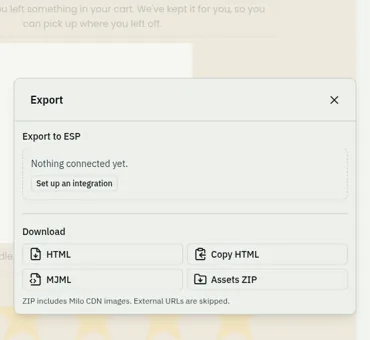
Then we downloaded HTML and MJML. Both keep the first-name merge tag intact, both alt texts, the Example review label, the preview text, and the placeholder cart link. No ESP was connected in this workspace ("Nothing connected yet"), so we didn't push a Zoho Campaigns draft.
Try it on your next cart reminder.
Questions
What should an abandoned cart email include?
A short reminder, the product in live text, one Return to cart button, who it's from and an unsubscribe link.
How many abandoned cart emails should I send?
One good reminder is enough to start. Add a short follow-up later if your ESP supports it; keep both on the same brand kit.
Should an abandoned cart email offer a discount?
Only if you already planned one. Put the code and any terms in live text, not only in an image.
Is there an abandoned cart email template in Milo?
Not a dedicated one. Start from the Promo starter on your brand kit and rewrite it as a calm reminder.
Can Milo pull the items left in the cart?
No. Your ESP supplies cart contents through merge tags or a product feed; Milo keeps those tags intact when you export.
How do I show star ratings in the email?
Use a star image and put the review in live text. Milo has no rating block.
Can the AI designer write the cart reminder?
It can draft blocks, subject lines and preview text from facts you give it, and you edit them on the canvas.
How do I get it into my ESP?
Export HTML or MJML, or push a draft to Zoho Campaigns. The cart trigger and send stay in your ESP.