An advent calendar email is a daily run of sends through December, each one opening a "door" with a new offer, tip or reveal. Good advent calendar email design keeps one layout and one look for the whole run, so people recognise the email before they read it, and makes each day's door obvious: one offer in live text, one button. In Milo Email Studio you build the first door on the drag-and-drop canvas with your brand kit, duplicate it for each day, and export HTML or MJML for your ESP or push a Zoho Campaigns draft.
It's a lovely idea until you count it out. That's 24 sends, 24 subject lines and 24 offers, and by day five the layout has started to drift because each email got built in a hurry. Design one door properly instead, then reuse it. Every send looks like the same shop, and your time goes on the 24 offers, not 24 layouts.
In short
- Design one door, then duplicate it. Don't design 24 emails.
- Keep the brand kit the same all month. Change the offer, not the layout.
- Put each day's offer and its end time in live text near the top.
- 24 days is a lot. 12 days, or weekdays only, is often the better run.
- Test each day, then export HTML or MJML, or push a Zoho draft.
How do you design an advent calendar email?
Design one email as the template for the whole run: a header people recognise, a door block with the day number and one offer in live text, and one button. Duplicate it for each day and change only the door. Keep the same brand kit all month so every send looks like it came from the same shop.
Why advent emails drift off-brand
A daily campaign leaves no slack. Day 1 gets a careful build. By Day 9 someone is copying last year's hero, trying a new button colour and pasting the offer into an image because it's quicker.
Each shortcut is small, but readers notice the sum of them. A different look every morning makes the email harder to recognise, and an offer that lives only in a picture is invisible with images off. The fix is to decide the design once and protect it for the month.
Plan the run before you design a door
Start with how many doors you can fill well. A full 24 runs from 1 to 24 December. Twelve days, or weekdays only, suits a smaller range or a smaller team. Pick the number of good offers you actually have.
Then give the run one theme and decide what each door gives. A discount, a product reveal, a tip or a free gift with orders all work. You might save one bigger door for the end, so people have a reason to keep opening.
Keep every offer honest. The end time in the email is the time it ends, and each door's offer stands on its own rather than coming back the next week.
Give each email a due date and the whole run sits on your Planner, so you can spot a gap on Day 14 before December arrives. You can also see all 24 due dates in your own calendar. The due date is there for planning. Each send goes out from your ESP.
Design one door, then reuse it
This is the one part worth taking slowly. Every email in the run shares three parts:
- A header people recognise. Your logo and brand colours, the same every day.
- The door. The day number, one offer in live text and one button.
- A footer with your address and a clear unsubscribe link.
A brand kit carries the look. A new email picks up your kit's colours, fonts and buttons, and you can apply the kit to an email you've already made. The guide to setting your colours, fonts and buttons once explains how kits behave. One piece of advice for December: leave the kit alone for the month. Changing a kit later doesn't restyle emails you've already made, so a mid-run tweak would leave Day 1 and Day 20 looking different.
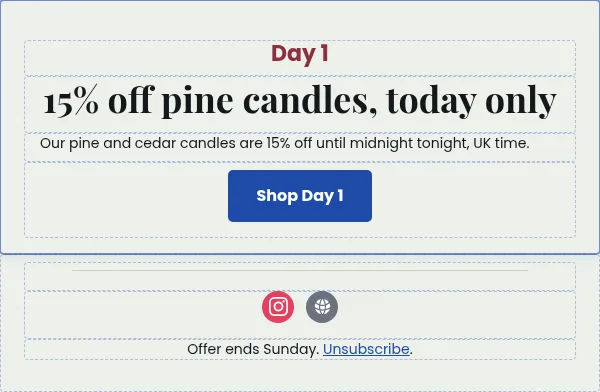
Here's a worked door for an example candle shop:
- Day number: Day 7
- Offer heading: 15% off pine candles, today only
- Supporting line: Our pine and cedar candles are 15% off until midnight tonight, UK time.
- Button: Shop Day 7
Save the door section as a saved block and you can drop it into any email, including a one-off send that sits outside the run.
Then duplicate. Duplicate an email and the copy keeps its blocks, brand kit, subject and preview text. You change the door. The copy opens straight away as "Copy of Day 1", so rename it "Day 2" and rewrite the offer. It doesn't carry over the due date or status, so set those on each copy.
It's the same idea as the Black Friday and Cyber Monday set from one brand kit, stretched over December.
Advent calendar email ideas for each door
You don't need 24 different kinds of door. A handful of types, repeated, keeps the run fresh without new design work:
- Product of the day. One product, one price, one button.
- A tip or how-to. Something useful that features what you sell, like how to get an even burn from a new candle.
- Behind the scenes. Who makes it, where it's packed, what the workshop looks like in December.
- Customer favourite. The product people reorder most, in your words.
- Gift guide pick. One gift for a specific person, such as "for the friend who has everything".
- Free delivery day. A clear start and end, in live text.
- Last order date reminder. One door that says when to order by for Christmas delivery. If you want a full gift email around it, start from the Christmas gifts starter and its last order date.
These are content ideas. The door design stays the same for all of them.
Get a hand with the door copy
You're the builder here. If you'd like a hand on the days you're short on words, the AI designer can help. Describe the day the way you'd tell a colleague:
"Day 7 door for our candle shop: 15% off pine candles today only, until midnight UK time. Keep our kit, one button: Shop Day 7. Set a subject and preview line."
It drafts on-brand blocks you edit on the canvas, it can drop in your saved door block, and it can set the email's subject and preview text. Edit what comes back, and check every date and price yourself. It places images you upload or pick from your media library, but it doesn't make them. There's more on how the AI designer drafts blocks.
12 days of Christmas: the shorter run
A 12 days of Christmas email campaign uses the same method with half the sends. Design one door, duplicate it eleven times, change the offer each day. It's a good fit for small teams, for shops with a tight range, and for anyone who'd rather send 12 strong offers than 24 thin ones.
It also fits the Free plan. Free includes 20 emails and one brand kit, and each duplicate counts as an email, so a 24-door run needs Pro or Team. Twelve doors leave room for the rest of your December emails.
Subject lines and preview text for 24 days
Give the subject a pattern people can scan in a busy inbox. Starting with the day number, as in "Day 7: 15% off pine candles", tells readers where they are in the run and what today's door holds.
Let the preview text finish the thought rather than repeat it. "Today only, until midnight UK time. Our most-loved winter scent." Each email in Milo has its own preview text, set in the Preheader Text field under Settings, and a duplicate keeps the one from the email you copied, so remember to change it. Our guide to writing preview text for each door has more.
Test, then hand each day to your ESP
Send yourself a Test of each day before it goes anywhere. Milo sends it to an address on your account with "Test:" and the email's name as the subject, so you see the door as a subscriber would. Check it with images off too. The day number, the offer, the end time and the button should all still make sense. The checks we run before every export cover the rest.
Then take export-ready HTML or MJML into your ESP, or push each day as a Zoho Campaigns draft. You set each day's send time in your ESP, and the run goes out from there.
How we built this
On 26 October 2026 we built the first three doors of an advent run for an example candle shop in Milo Email Studio. Day 1 started from the Promo starter. No brand kit was applied in our run. The Brand panel said "No brand selected", so the colours you see are the starter's own.
We turned the starter's hero into the door. "Day 1" went in the small heading above, "15% off pine candles, today only" became the main heading, and the button became "Shop Day 1". We set the subject to "Day 1: 15% off pine candles", put the preview text in the Preheader Text field under Settings and gave the email a due date of 1 December.
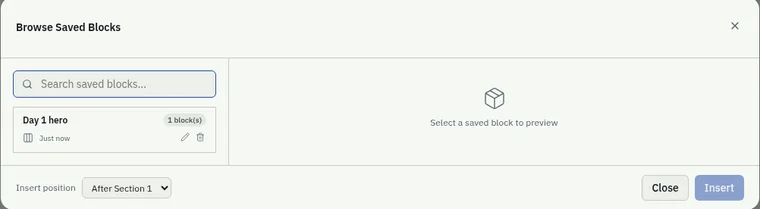
To reuse the door, we selected its section, clicked the bookmark icon on the section's toolbar and chose Save Block. The Save as Block dialog asks for a name and a category, and we called it "Day 1 hero". It then showed up in the saved blocks browser as "Day 1 hero" with "1 block(s)", ready to insert into any email.
Next we duplicated Day 1. The copy opened straight away as "Copy of Day 1" with the same blocks, subject and preview text. With no kit applied, there was no kit for it to carry over in our run. The due date didn't come across, and the field read "Select a date". We made Day 2 and Day 3 this way, rewrote each door and gave them due dates of 2 and 3 December.

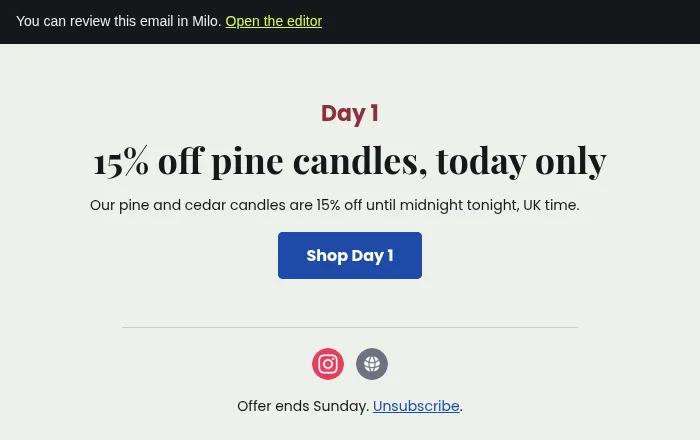
Then we sent ourselves a Test of Day 1 to the address on our account. It arrived with "Test: Day 1" as the subject, which is the email's name, and a "You can review this email in Milo" banner at the top that links back to the editor. The day number, offer and button all came through as live text.
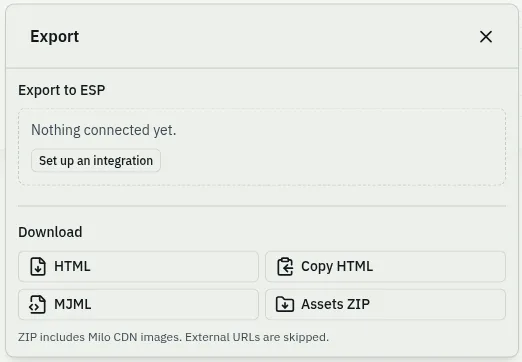
Finally we downloaded Day 1 as HTML and MJML from the export panel. Both files held the door as live text, "Shop Day 1" included, and both carried our preview text. The only images were the two social icons, both on https. The button and the unsubscribe link still pointed at the starter's placeholder addresses, a useful reminder to put your real links in before you export. We didn't have Zoho Campaigns connected, so we didn't push a draft.
We built all three doors by hand on the canvas. We didn't use the AI designer for this run.
Try it on your first door.
Questions
What is an advent calendar email?
A daily email through December where each send opens a new "door": an offer, a product reveal or a tip. It's a campaign, so every email should look like part of the same set.
How many emails is an advent calendar campaign?
Usually 24, one a day from 1 to 24 December, but 12 days or weekdays only works too. Pick the number of good offers you actually have.
Is there an advent calendar email template in Milo?
No, and you don't need one. Start from the Promo or Christmas gifts starter, design one door, then duplicate it for each day.
How do I keep 24 emails on brand?
Use one brand kit for the whole run and duplicate one finished email for each day. Change the offer, not the layout.
Can I do a 12 days of Christmas email with this?
Yes. It's the same method with half the sends, and on Free it fits within the 20 emails included.
Can the AI designer write each day's offer?
It can draft the door copy, subject and preview text from what you describe. Edit what comes back, and check every date and price yourself.
Does Milo send the advent emails each day?
You schedule and send them from your ESP. Export each day as HTML or MJML, or push it to Zoho Campaigns as a draft.