A good Christmas email template is one offer, a gift-led hero, a few products and a clear last order date, all in your brand rather than generic red and green. In Milo Email Studio you start from the Christmas gifts starter on the drag-and-drop canvas, your brand kit restyles it (the AI designer can help with a first pass), and you leave with export-ready HTML or MJML for your ESP, or a draft pushed to Zoho Campaigns.
December inboxes are crowded, and a stock template looks like everyone else's. What you want is an on-brand Christmas email in an afternoon, without fighting your ESP's builder, that still holds up in Outlook and dark mode. It's the gift-season partner to your Black Friday email set.
What a Christmas email template needs
Every part of a Christmas email should earn the click. Here's what does the work, and why.
- A gift-led hero. One image and one line that says what you're offering. People skim in December, so the hero has to land in a second.
- A warm intro. A sentence or two that sounds like you, not a card shop.
- One featured gift. Your hero product, with a short reason it makes a good present and the price in live text.
- Two or three more products. Enough choice to suit different budgets, not a whole catalogue.
- One offer. Free gift wrapping, a gift note or free delivery. Pick one so it doesn't compete with the products.
- A last order date in live text. The line many people open the email for.
- A proper footer. Unsubscribe and manage preferences links, so a busy season doesn't cost you subscribers.
Milo's Christmas gifts starter
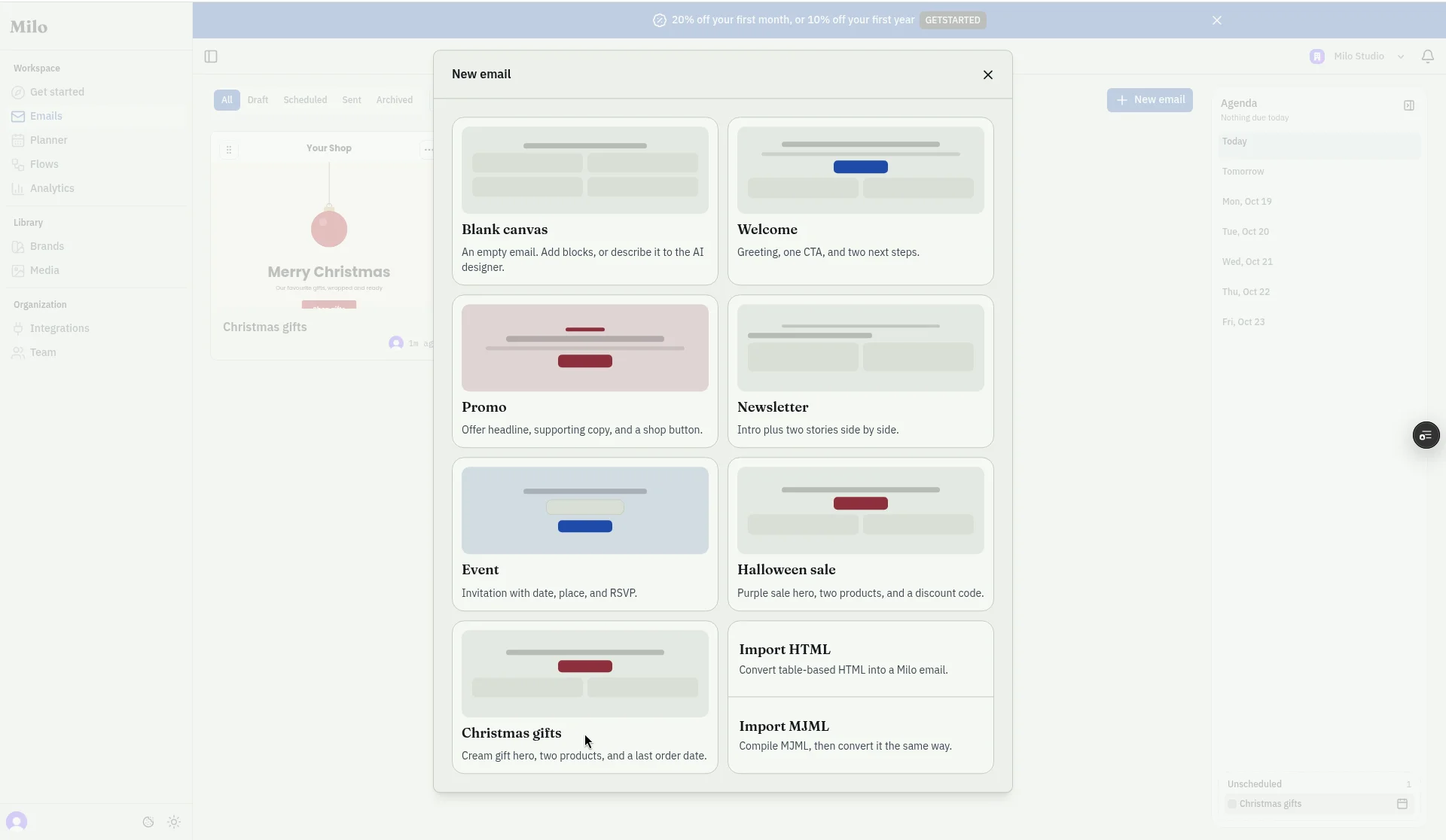
Milo now has a Christmas gifts starter in the starter chooser, next to Welcome, Promo, Newsletter, Event and the Halloween sale starter. It already has every part above in place, so you start from a finished layout instead of a blank page.
Here's what's in it:
- Logo at the top, ready for yours.
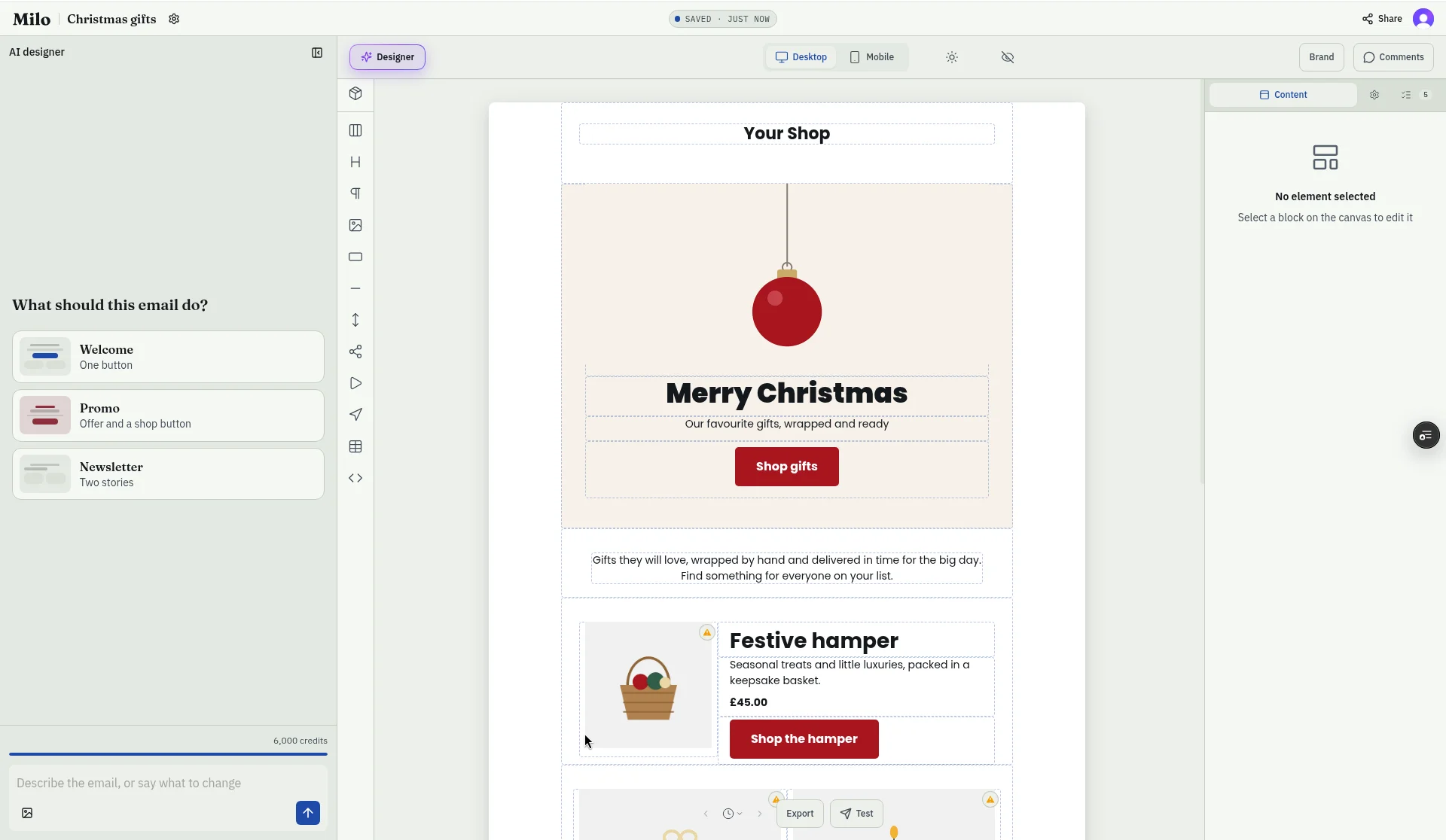
- Cream gift hero with a bauble image, a "Merry Christmas" headline, "Our favourite gifts, wrapped and ready" and a Shop gifts button.
- Intro paragraph about gifts wrapped by hand and delivered in time for the big day.
- Featured product: a festive hamper with a short description, a price and its own button.
- Two product cards: a wrapped gift box and a pine candle, each with a price.
- Offer banner: "Free gift wrapping", with an Add a gift note button.
- Last order date strip in a red band.
- Social icon row and a footer with Unsubscribe and Manage preferences links.
The footer links use the merge tags for the tag set you've chosen, so they come out in your ESP's own syntax. If you haven't chosen one, they stay as plain example links you can swap later. The preview line is pre-filled too.
Everything in the starter is sample content: the product names, prices, links and the date in the last order strip (18 December) are placeholders. Swap in your own, and set the date from your own carrier's cut-off rather than the sample.
Using the Christmas gifts starter
Pick Christmas gifts from the starter list and you skip the blank page entirely.
The editor opens with a festive hamper and gift cards already laid out, so you only change the words, prices and pictures to match your shop.
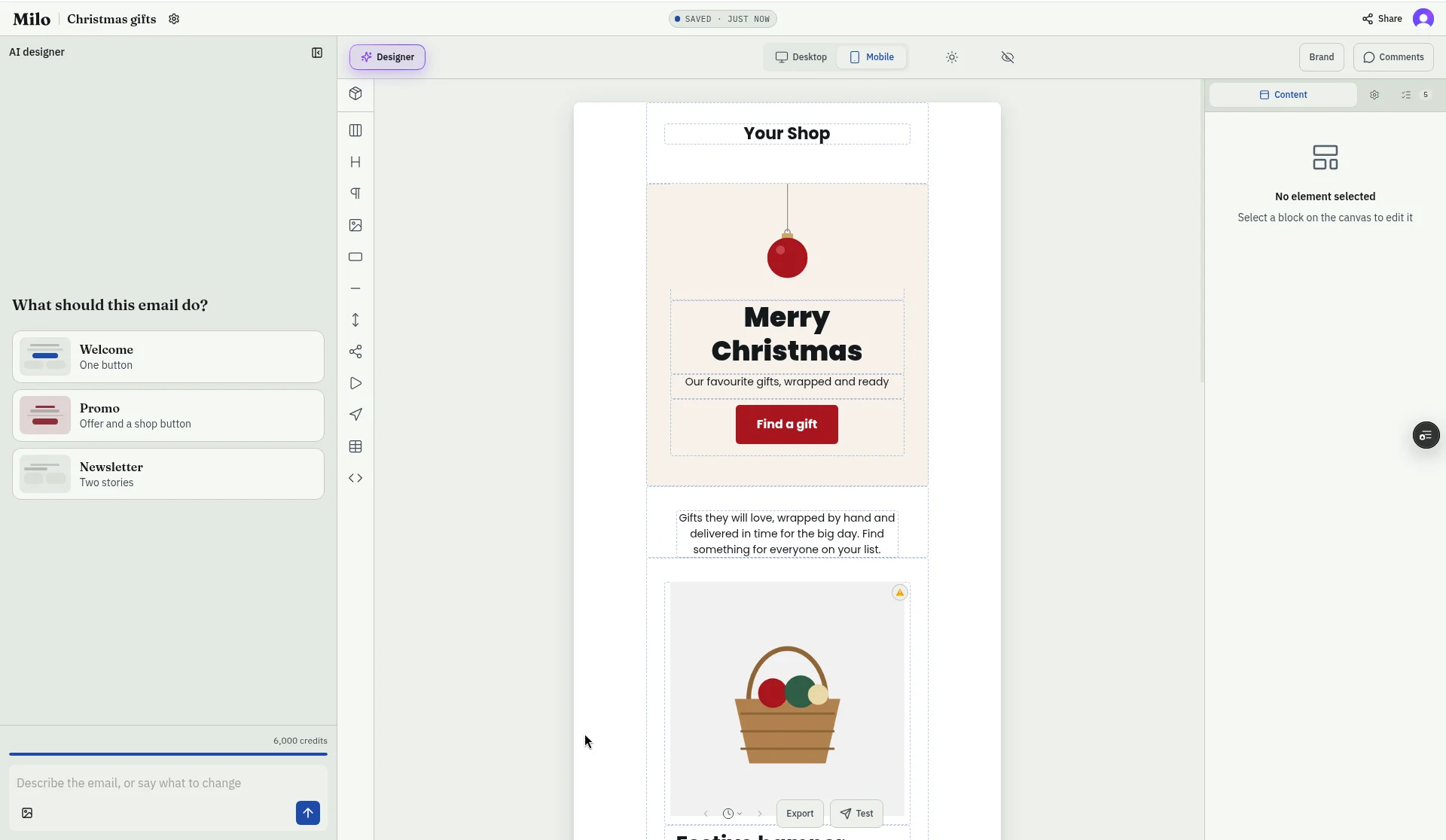
One quick edit and a check in the mobile view shows how it reads on a phone.
Make it yours, not red and green
Your brand kit carries your colours, fonts, buttons and logo, so the starter re-skins to look like you the moment you pick it. That matters more at Christmas than any other time, because every other email in the inbox is reaching for the same red and gold.
Keep the seasonal touch to one accent. A single section's background or one button colour is enough to say "Christmas" while your brand still does the talking. Then switch it off in January and carry on with your normal kit. It's the same habit that works for Halloween email design, and there's more on keeping kits tidy in brand kits for email templates.
The last order date is the email people open
When delivery is on the line, people want to know one thing: will it arrive in time? Shipping deadlines are a recurring theme in holiday email planning guides, and the date only helps if everyone can read it.
So put it in live text, never only inside an image. Images are often off by default, and a date baked into a banner disappears with them. The starter's last order strip is live text for exactly that reason. Use your own carrier's cut-off, and if you send more than one reminder, keep the date the same across all of them.
Inbox-proof before you export
A Christmas email that breaks in the inbox is a gift nobody opens. A few checks cover most of it:
- Images off. The offer, the products and the last order date should still make sense.
- Dark mode. Put your logo on a solid background so it doesn't vanish when colours flip.
- Animated GIFs. Classic Outlook on Windows usually shows only the first frame, so put the message in frame one. More in Outlook email fallbacks.
- Preview text. Name the gift or the date, not "View this email in your browser". There's more in email preheader text.
Seasonal palettes are shifting too: this year's holiday design trends lean towards richer, softer colours than classic red and green, which suits a brand-led approach.
From template to send
Pick the Christmas gifts starter and edit the blocks yourself, or describe your version to the AI designer the way you'd explain it to a colleague: what you sell, the offer and the tone. What comes back is on-brand blocks you can edit. Send yourself a Test to see it in a real inbox, then take export-ready HTML or MJML into your ESP, or push a draft to Zoho Campaigns. The campaign itself goes out from your ESP.
Try it on your Christmas email this year.
Questions
Is there a Christmas email template in Milo?
Yes. Pick the Christmas gifts starter. It has a gift hero, a featured product, two product cards, a free gift wrapping banner, a last order date strip and a footer with unsubscribe and manage preferences links.
Can I change the colours?
Yes. Your brand kit sets the colours, fonts, buttons and logo. For a seasonal touch, change one section's background or this email's button colour rather than your main kit.
Will it work in Outlook?
Milo exports email-ready HTML and MJML. Still send yourself a Test and check classic Outlook if your list uses it, especially any animated GIF, where Outlook usually shows only the first frame.
Can the AI designer write the gift copy?
Yes. Describe your products, offer and tone, and it drafts on-brand blocks, including the subject and preview line. It doesn't create images, so upload your own.
When should the last-order email go out?
Before your own carrier's cut-off, with enough time for people to order. Check your carrier's published dates rather than relying on a sample date in a template.