A good Christmas newsletter design does three things: it thanks people, shows them the year in a few real highlights, and tells them what's coming next, all in your own brand. Keep it to one main message, put the highlights in live text rather than one big image, and give it one clear button. In Milo Email Studio you build it on a drag-and-drop canvas from the Newsletter starter and your brand kit, send a Test, then export HTML or MJML for your ESP or push a Zoho Campaigns draft.
By December your list has had the sale emails. The Christmas newsletter is the one that says thank you and shows what the year added up to, and it often gets left to the last week because it feels like a design job. It doesn't need to be. Start from a layout that already looks like you, and your time goes on the three things worth saying about the year.
In short
- Thank people, show the year in three highlights, say what's next.
- Live text, one button, your brand kit.
- Build, Test, then export HTML or MJML, or push to Zoho.
What should a Christmas newsletter include?
A thank-you, a short year in review, what's next, and any practical holiday information such as opening hours or the last date you'll reply.
- A thank-you that names who it's for. Customers, readers, volunteers, the team.
- The year in three highlights. A number people can picture, a milestone, a moment you're proud of.
- What's next. One line on what's coming in January.
- Holiday hours. When you close, when you're back, and how quickly you'll reply in between.
Keep it free of selling. One soft link to your shop or blog is fine. Discount codes belong in your sale emails.
Why a newsletter, not another offer
December inboxes are full of offers. If you've already sent your Black Friday and Cyber Monday set, your list knows what you sell and what it costs. This email earns the open with something else: a look back, a thank-you and a reason to stay on the list in the new year.
It's a different job from the other December emails. For a gift email with products and a last order date, start from the Christmas gifts starter, for a gift email. For an offer every day through December, see a daily advent run. The newsletter is the one email that isn't asking for anything.
The year in review section
This is the heart of a Christmas newsletter, and the part most worth your time. Three highlights is plenty. More than that and it starts to read like an annual report.
- A number people can picture. "We poured our 10,000th jar in June" lands better than a percentage.
- A milestone. A new product, a new shop, a new person on the team.
- A thank-you that names who it's for. "To everyone who came to the summer market" is warmer than "to all our customers".
Put each highlight in live text with a short heading, so it still reads with images off and in an inbox preview. One photo is enough, with alt text that says what's in it, such as "The team outside the shop in the snow".
This is a "this was our year" email, and that version works for any small team. Personal stats such as "you bought 4 jars this year" come from your ESP's subscriber data, not from Milo, so leave those to your ESP if you have them.
Christmas newsletter ideas that aren't a sale
If you're stuck on what to say, pick two or three of these:
- Behind the scenes. Where things are made, packed or written in December.
- A team photo. The people your list never sees.
- The most-loved product or post of the year. In your words, with one link.
- A customer story. Only with their permission, and in their words where you can.
- A charity you supported. What you did and why.
- What's coming in January. A new range, a workshop, a reopening date.
- Holiday hours. Short and practical, near the bottom.
Build it fast from your brand kit and saved blocks
You don't need a Christmas newsletter template. Milo's Newsletter starter already has the shape: a top menu, an issue title with a one-line intro, two stories side by side, a button, and a footer that tells people why they got it. Rename the issue title, turn the two stories into your year in review, and the layout is done.
Your brand kit does the styling. A new email picks up your kit's colours, fonts and buttons, and you can apply a kit to an email you've already made. If you haven't made one yet, set your colours, fonts and buttons once. Free includes one brand kit.
Then save your sign-off. Save a section as a saved block and you can drop it into any email, so January's newsletter starts with the same thank-you line and footer.
You're the builder, and the AI designer is there when you'd like a hand with the words. It doesn't know your year, so give it the facts the way you'd tell a colleague: "Year in review for our shop: we poured our 10,000th jar in June and opened a new shop in York in May. Keep our kit, one button. Set a subject and preview line." It drafts on-brand blocks you edit on the canvas, can drop in your saved sign-off, and can set the email's subject and preview text. It places images you upload or pick, but it doesn't make them. There's more on how the AI designer drafts blocks.
Subject line and preview text
Keep both warm and plain. This email isn't competing on urgency, so let it sound like you. Three pairs for an example shop:
- Subject: Our year, and what's next Preview: Three things you helped us do this year, and when we're open again.
- Subject: Thank you for a lovely year Preview: The 10,000th jar, a new shop in York and what comes next.
- Subject: A short look back before Christmas Preview: Our year in three highlights, plus holiday hours.
Each email in Milo has its own preview text, up to 180 characters, but short reads better in most inboxes. Our guide to preview text that sounds like you has more.
Test, then hand it to your ESP
Send yourself a Test before it goes anywhere. Milo sends it to an address on your account with "Test:" and the email's name as the subject, so you see the newsletter as a subscriber would. Check the year in review still reads with images off, and that the button goes somewhere real.
Then take export-ready HTML or MJML into your ESP, or push it as a Zoho Campaigns draft. You pick the send date and send it from there.
How we built this
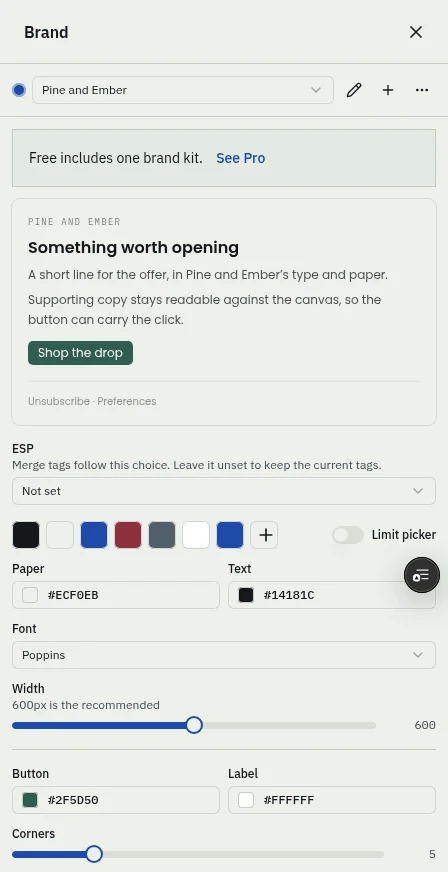
On 27 October we built a Christmas newsletter for an example shop in Milo Email Studio, starting from the Newsletter starter. The Brand panel had no kit at first and said "No brand selected", so we made one from scratch and called it Pine and Ember: a pine green button, Poppins type and a pale paper colour. When we applied it, the button, the menu links and the footer's Unsubscribe link turned pine green and the text switched to Poppins.
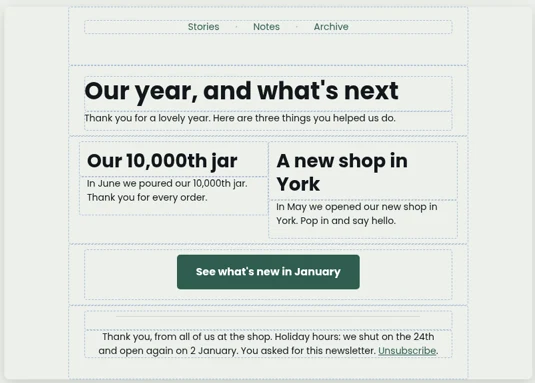
We renamed the email "Our year" and kept the starter's layout. The issue title became "Our year, and what's next", the intro thanks people for a lovely year, and the two stories became the year in review: "Our 10,000th jar" and "A new shop in York". The button reads "See what's new in January", and the footer now opens with a thank-you and the holiday hours: shut on the 24th, open again on 2 January. We left the menu and the starter's placeholder links as they were. The subject is "Our year, and what's next" and the preview text is "Three things you helped us do this year, and when we're open again."
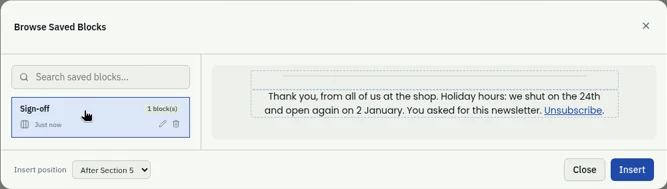
To reuse the sign-off, we selected the footer section, clicked the bookmark icon on its toolbar and chose Save Block. The Save as Block dialog asks for a name and an optional category, and we called it "Sign-off". It then showed up in Browse Saved Blocks as "Sign-off" with "1 block(s)", ready to insert into January's issue.
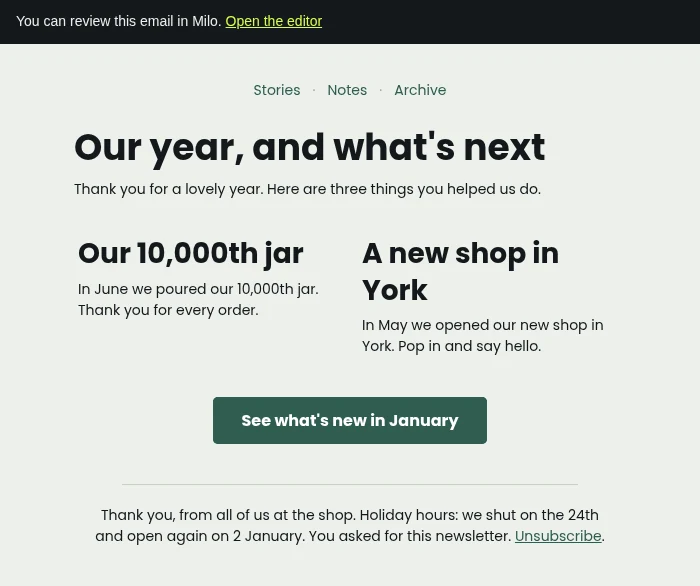
Then we sent ourselves a Test. The Send Test Email dialog filled in the address on our account, and the email arrived from Milo with "Test: Our year" as the subject, which is the email's name, and a "You can review this email in Milo" banner at the top that links back to the editor. The title, both highlights, the holiday hours and the button all came through as live text, in Poppins with the pine green button.
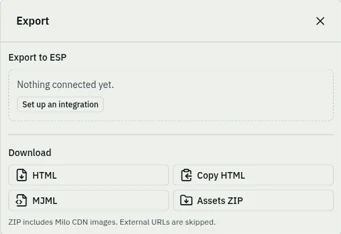
Finally we downloaded the newsletter as HTML and MJML from the export panel. Both files held the whole newsletter as live text, "See what's new in January" included, and both carried our preview text, the pine green button and Poppins. There were no images in either. The menu, button and unsubscribe links still pointed at the starter's placeholder addresses, a useful reminder to put your real links in before you export. We didn't have Zoho Campaigns connected, so we didn't push a draft.
We built the newsletter by hand on the canvas and wrote the subject and preview text ourselves. We didn't use the AI designer for this run.
Try it on this year's newsletter.
Questions
What should I put in a Christmas newsletter?
A thank-you, three highlights from the year, what's next, and holiday hours if you have them.
What is a year in review email?
A short email that looks back on the year: a few highlights, a thank-you and what's coming. Brands with the data sometimes make it personal, but a "this was our year" version works for any small team.
When should I send a Christmas newsletter?
Early to mid-December, after the sale emails and before people switch off. Pick the date that suits your list. There's no single right day.
Is there a Christmas newsletter template in Milo?
Not a dedicated one. Start from the Newsletter starter on your brand kit and add a Year in review section.
Should a Christmas newsletter sell anything?
It can link to your shop once, but keep offers for your sale emails.
Can the AI designer write the year in review?
It can draft it from facts you give it, and you edit it on the canvas.
Can I personalise it with first names?
Yes. Add a first name merge tag and it stays in the export as your ESP's tag, so your ESP fills it in.
How do I get it into my ESP?
Export HTML or MJML, or push a draft to Zoho Campaigns.